Minecraft skin guide
How to Add a Skin to Minecraft Java & Bedrock
Add your skin through the Java Launcher or minecraft.net profile, or import it in Bedrock's Dressing Room. Follow the illustrated steps for your edition.
How to Put a Skin on Minecraft: Quick Answer
To add a skin to Minecraft Java, use Skins → New Skin in the Launcher or upload the PNG through your minecraft.net profile. To add a skin to Bedrock, open Dressing Room → Classic Skins → Owned → Import on a supported Windows or mobile device. These are different menus: a Java profile upload does not import a skin into Bedrock.
| Edition or device | Where to go | What to choose |
|---|---|---|
| Java: Launcher | Launcher → Minecraft: Java Edition → Skins → New Skin | Select the PNG, match Classic or Slim, then Save & Use. |
| Java: minecraft.net profile | Sign in → Profile → Minecraft: Java Edition → Change Skin | Choose Classic or Slim, select your skin PNG, then upload. |
| Bedrock on Windows or mobile | Dressing Room → Edit Character → Classic Skins → Owned | Choose Import or Choose New Skin, then select the PNG. |
| Bedrock on consoles | Dressing Room | Direct PNG import may be unavailable when the device has no file picker. |
You have downloaded a Minecraft skin PNG. Now you need to put it in the game—not open it in an image editor or copy it into a game folder at random.
The correct path depends on your edition. Java Edition manages skins through the Minecraft Launcher or your web profile. Bedrock Edition uses the Dressing Room, and local PNG import is available only on supported devices. The two workflows look similar at the end, but the menus are not interchangeable.
See Minecraft's official skin overview for the Launcher and Dressing Room distinction, or open the official Change Java Skins & Capes page for the website route. Menu labels can vary by language and game version.
Before You Upload Your Minecraft Skin
Take ten seconds to check the file. This catches most failed uploads before you start digging through settings.
- The file extension should be .png.
- A standard modern skin should be 64×64 pixels.
- The image should look like an unfolded collection of head, body, arm, and leg surfaces—not like a normal portrait.
- Know whether you created it for Classic or Slim arms.
- Keep the original dimensions. Sending the PNG through a document app or social network can resize or recompress it.
If you used the BlockSkinLab converter, the downloaded file already has a modern square skin layout. Use the 64×64 download unless you have confirmed that your target supports 128×128 HD skins.
How to add a skin to Minecraft Java (Java Edition)
You can put the same skin PNG on your Java character in two ways: through the Minecraft Launcher or through your minecraft.net profile. Both apply to the Java account you sign in with. Choose the Launcher if it is already installed, or the website if you want to upload in a browser.
How to put a skin on Minecraft Java using the Launcher
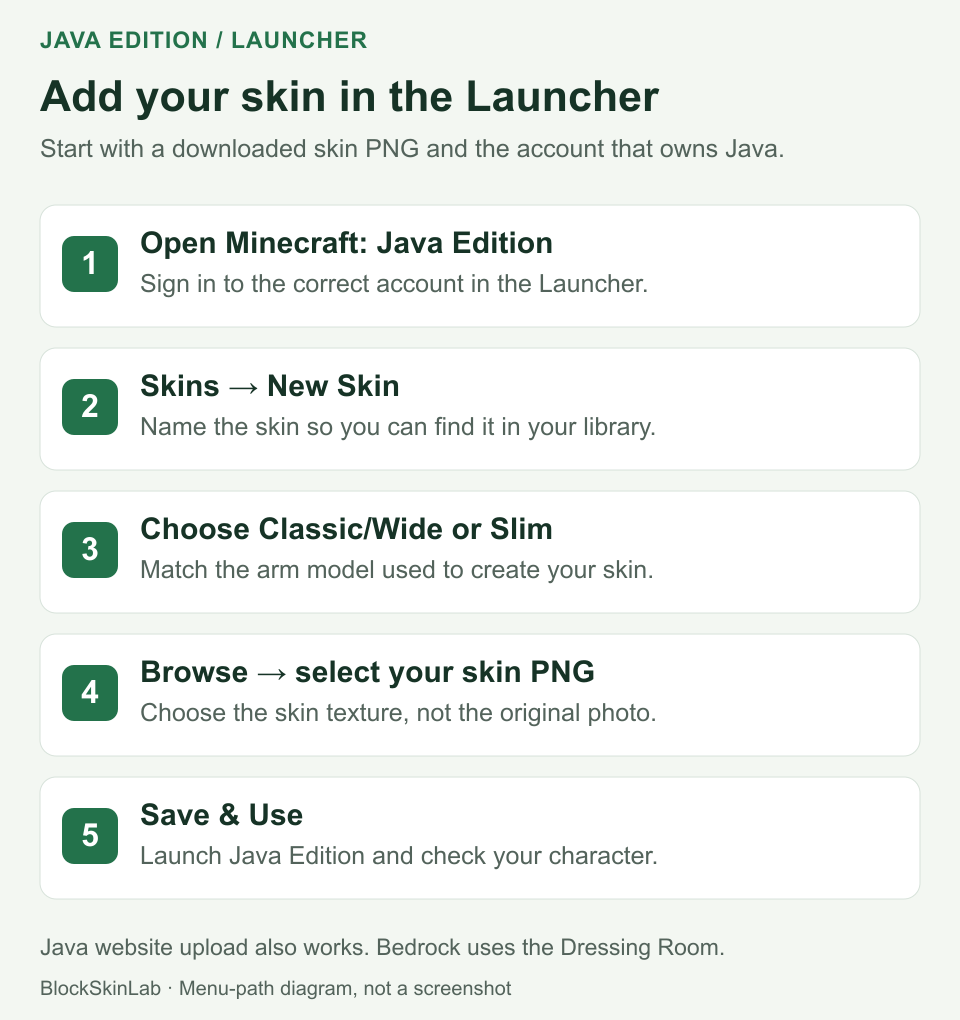
- Open Minecraft: Java Edition in the Launcher. Sign in with the Microsoft account that owns the game. Confirm the player name if you use several accounts.
- Choose Skins → New Skin. Give the skin a name for your library.
- Select Classic/Wide or Slim. Match the arm model used when the skin was created.
- Choose Browse and select the skin PNG. Pick the downloaded 64×64 skin texture, not the original photo or a screenshot of the preview.
- Choose Save & Use. If you only saved it, select the skin in your library and choose Use before starting the game.
How to import a skin into Minecraft Java on minecraft.net
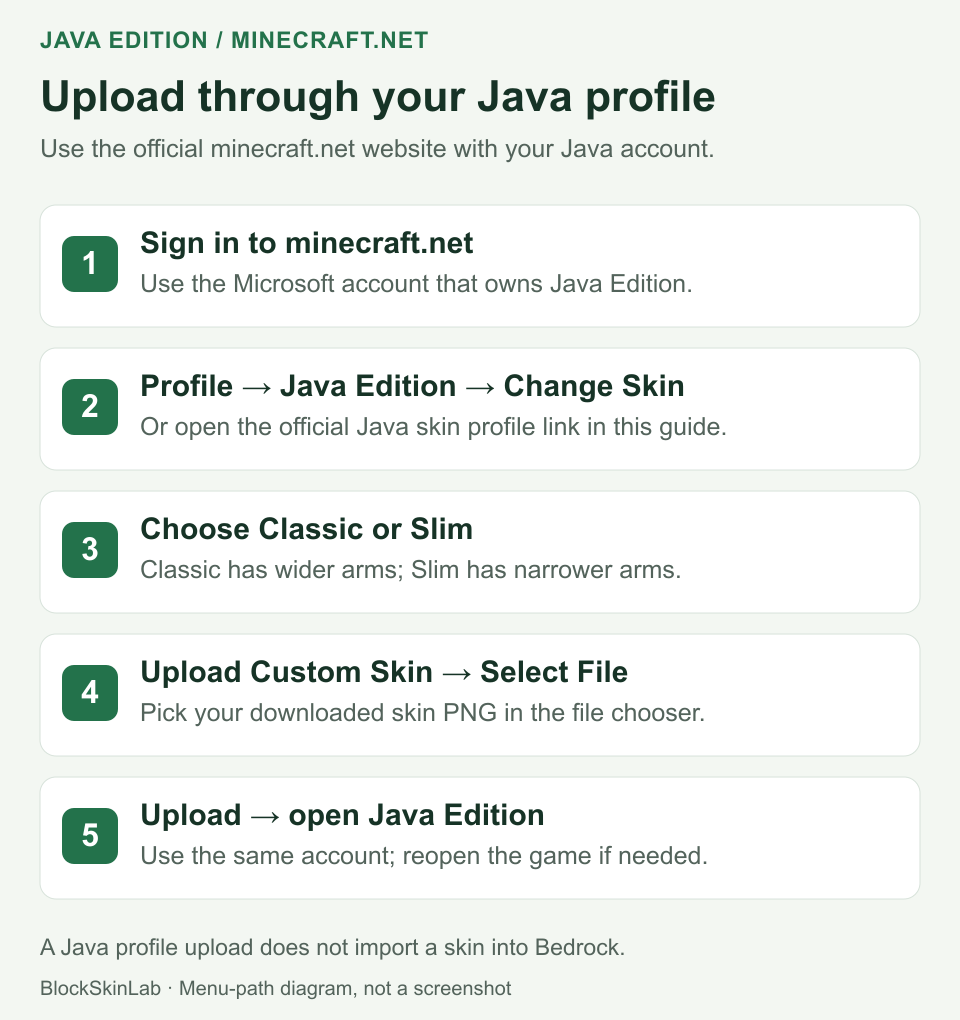
- Open minecraft.net and sign in. Use the Microsoft account that owns your Java Edition copy.
- Open your profile and find Minecraft: Java Edition. Choose Change Skin. You can also open the official Java skin profile page directly; sign in if prompted.
- Choose the matching model. Select Classic for four-pixel arms or Slim for three-pixel arms.
- Find Upload Custom Skin and select your file. Choose the downloaded skin PNG through Select File or the file picker shown on the page.
- Confirm Upload and check in Java Edition. Start the game using that same account. If it is already running, close and reopen it before checking your character again.
How to import a skin in Minecraft Bedrock Edition
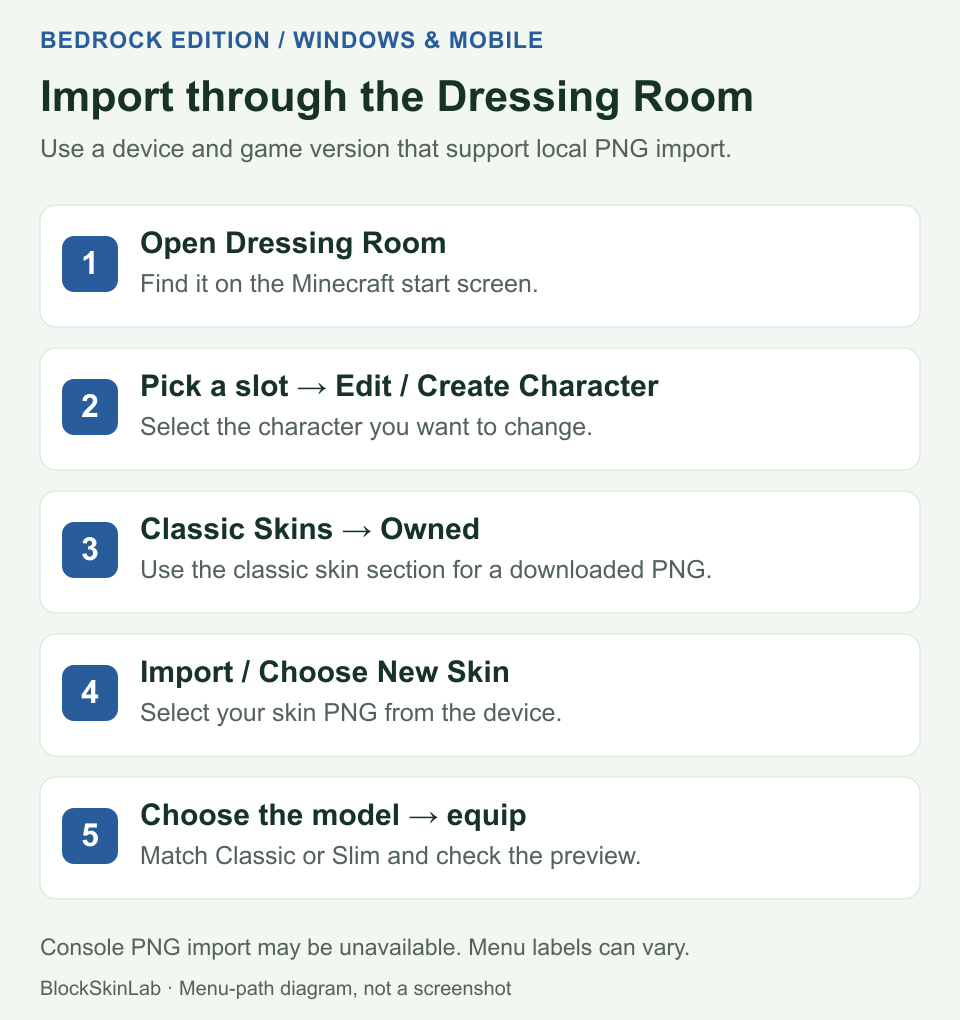
Bedrock uses the in-game Dressing Room, rather than Java's Launcher Skins tab or minecraft.net upload page. On Windows, Android, or iOS versions that support local PNG import, follow these steps:
- Open Minecraft and choose Dressing Room on the start screen.
- Select the character slot you want to change and choose Edit Character or Create Character.
- Open Classic Skins, then look under Owned for the blank/custom skin.
- Choose Import or Choose New Skin.
- Select the PNG from your device.
- Choose the body model that matches the file, then equip it.
Do not choose the item-by-item Character creator when your goal is to import a complete flat PNG. You want the Classic Skin side of the Dressing Room.
Imported Bedrock skins may be stored locally instead of synchronizing like Marketplace content. If a skin appears on one device but not another, import the PNG again on the second supported device.
Classic or Slim — Which Should You Choose?
Classic arms are four pixels wide on a 64×64 skin. Slim arms are three pixels wide and sit slightly differently at the shoulder. Minecraft sometimes labels them Wide/Classic and Slim/Alex.
Choose the model used when the skin was created. If you are unsure, preview both after import. The wrong option usually causes missing strips, dark seams, or clothing that looks cut along the arms. It will not damage the PNG, so you can go back and choose again.
Why Is My Custom Minecraft Skin Not Working?
The PNG has the wrong size
Return to the original download. Do not resize a normal picture to 64×64; it still needs the correct Minecraft skin template. If you downloaded a 128×128 version, try the 64×64 version first.
The arm model is wrong
Switch from Classic to Slim or the other way around. Look specifically at the underside of the arms and the shoulder seams.
Your platform does not allow direct import
This is common on Bedrock consoles. Check whether the Dressing Room offers a local file picker. Java Edition's launcher upload steps do not apply to Bedrock.
The image is invalid or corrupted
Open the PNG in a normal image viewer. If it will not open, download it again. If another app converted it to JPG or changed the dimensions, return to the unedited skin PNG.
The change does not update immediately
Confirm that you chose Use or Equip, then leave and reopen the Dressing Room or restart the game. On Java, make sure the launcher account and in-game account match. Server-side skin display can also depend on the server's authentication and skin settings.
Can You Upload a 128×128 Minecraft Skin?
Not as a standard Java Edition skin. Use 64×64 for the unmodified Java game.
Some Bedrock custom-skin workflows and third-party viewers accept 128×128 HD textures, but support is not universal. A platform may accept a 64×64 custom PNG while rejecting the HD version. If you need one file that is likely to work across both editions, choose 64×64. The 64×64 vs 128×128 guide explains the trade-off.
Need a Custom Skin First?
If you have a photo, drawing, or character image, use the Image to Minecraft Skin Converter. Position the subject inside the body guide, choose the arm model, fix the face if needed, and download the PNG. The complete image-to-skin guide walks through good source images and common mapping problems.
If you do not have a source image, the AI Minecraft Skin Generator can create a random 64×64 skin in your browser. Preview the result before downloading, then follow the Java or Bedrock steps above.
FAQ
How do I put a skin on Minecraft Java?
Open the official Minecraft Launcher, select Minecraft: Java Edition, open the Skins tab, and choose New Skin. Browse for the 64×64 PNG, select the matching Classic or Slim model, then choose Save & Use.
How do I import a skin into Minecraft Java on minecraft.net?
Sign in to minecraft.net with the Microsoft account that owns Java Edition. Open your profile, find Minecraft: Java Edition, and choose Change Skin. Select Classic or Slim, choose your skin PNG in Upload Custom Skin, and confirm the upload. Use the same account when you next launch Java Edition.
How do I add a skin to Minecraft Bedrock?
On a supported Windows or mobile device, open Dressing Room, select a character slot, and open Edit Character or Create Character. Choose Classic Skins, then Owned, Import or Choose New Skin. Select your skin PNG, choose the matching arm model, and equip it. Consoles may not offer local PNG import.
Can a website upload a skin directly to my Minecraft account?
BlockSkinLab creates and downloads skin PNG files but does not sign in to or change your Minecraft account. Upload the finished PNG yourself through the official Java Launcher or a supported Bedrock Dressing Room import path.
Does a custom Minecraft skin need to be a PNG?
Use a real PNG with a valid Minecraft skin layout. A standard modern skin is 64×64 pixels. Do not rename a JPG to .png, and avoid resizing or recompressing the downloaded skin before you import it.
Why is my custom Minecraft skin not showing correctly after upload?
Check the PNG dimensions, the Classic or Slim arm model, and whether your platform supports the import method you are using. A corrupted file, an unsupported resolution, or choosing the wrong arm model can make the skin fail to load or look incorrect.
Can I use the same custom skin on Java and Bedrock?
A standard 64×64 PNG can often be used in both editions when you choose the matching Classic or Slim model. The upload process is different, and Bedrock import availability and some skin behavior can vary by device or platform.
What happens if I choose the wrong Classic or Slim model?
The arm texture can look cut, show dark seams, or expose missing strips because Classic and Slim arms use different widths. The PNG is not damaged; choose the other arm model and preview the skin again.
Can I change my Minecraft skin after uploading it?
Yes. You can select or upload another skin later. Java manages skins through the launcher or profile, while Bedrock uses the Dressing Room on platforms that support the relevant skin options.